Tutorial: W&B Launch basics
This page walks through the basics of the W&B Launch workflow.
W&B Launch runs machine learning workloads in containers. Familiarity with containers is not required but may be helpful for this walkthrough. See the Docker documentation for a primer on containers.
Prerequisites
Before you get started, ensure you have satisfied the following prerequisites:
- Sign up for an account at https://wandb.ai/site and then log in to your W&B account.
- This walkthrough requires terminal access to a machine with a working Docker CLI and engine. See the Docker installation guide for more information.
- Install W&B Python SDK version
0.17.1or higher:
pip install wandb>=0.17.1
-
Within your terminal, execute
wandb loginor set theWANDB_API_KEYenvironment variable to authenticate with W&B.- Log in to W&B
- Environment key
Within your terminal execute:
wandb loginWANDB_API_KEY=<your-api-key>Replace
<your-api-key>with your W&B API key.
Create a launch job
Create a launch job in one of three ways: with a Docker image, from a git repository or from local source code:
- Image-based job
- Git-based job
- Code-based job
To run a pre-made container that logs a message to W&B, open a terminal and run the following command:
wandb launch --docker-image wandb/job_hello_world:main --project launch-quickstart
The preceding command downloads and runs the container image wandb/job_hello_world:main.
Launch configures the container to report everything logged with wandb to the launch-quickstart project. The container logs a message to W&B and displays a link to the newly created run in W&B. Click the link to view the run in the W&B UI.
To launch the same hello-world job from its source code in the W&B Launch jobs repository, run the following command:
wandb launch --uri https://github.com/wandb/launch-jobs.git \\
--job-name hello-world-git --project launch-quickstart \\
--build-context jobs/hello_world --dockerfile Dockerfile.wandb \\
--entry-point "python job.py"
The command does the following:
- Clone the W&B Launch jobs repository to a temporary directory.
- Create a job named hello-world-git in the hello project. This job tracks the exact source code and configuration used to run execute the code.
- Build a container image from the
jobs/hello_worlddirectory and theDockerfile.wandb. - Start the container and run the
job.pypython script.
The console output shows the image build and execution. The output of the container should be nearly identical to the previous example.
Code not versioned in a git repository can be launched by specifying a local directory path to the --uri argument.
Create an empty directory and add a Python script named train.py with the following content:
import wandb

with wandb.init() as run:
    run.log({"hello": "world"})
Add a file requirements.txt with the following content:
wandb>=0.17.1
From within the directory, run the following command:
wandb launch --uri . --job-name hello-world-code --project launch-quickstart --entry-point "python train.py"
The command does the following:
- Log the contents of the current directory to W&B as a Code Artifact.
- Create a job named hello-world-code in the launch-quickstart project.
- Build a container image by copying
train.pyandrequirements.txtinto a base image andpip installthe requirements. - Start the container and run
python train.py.
Create a queue
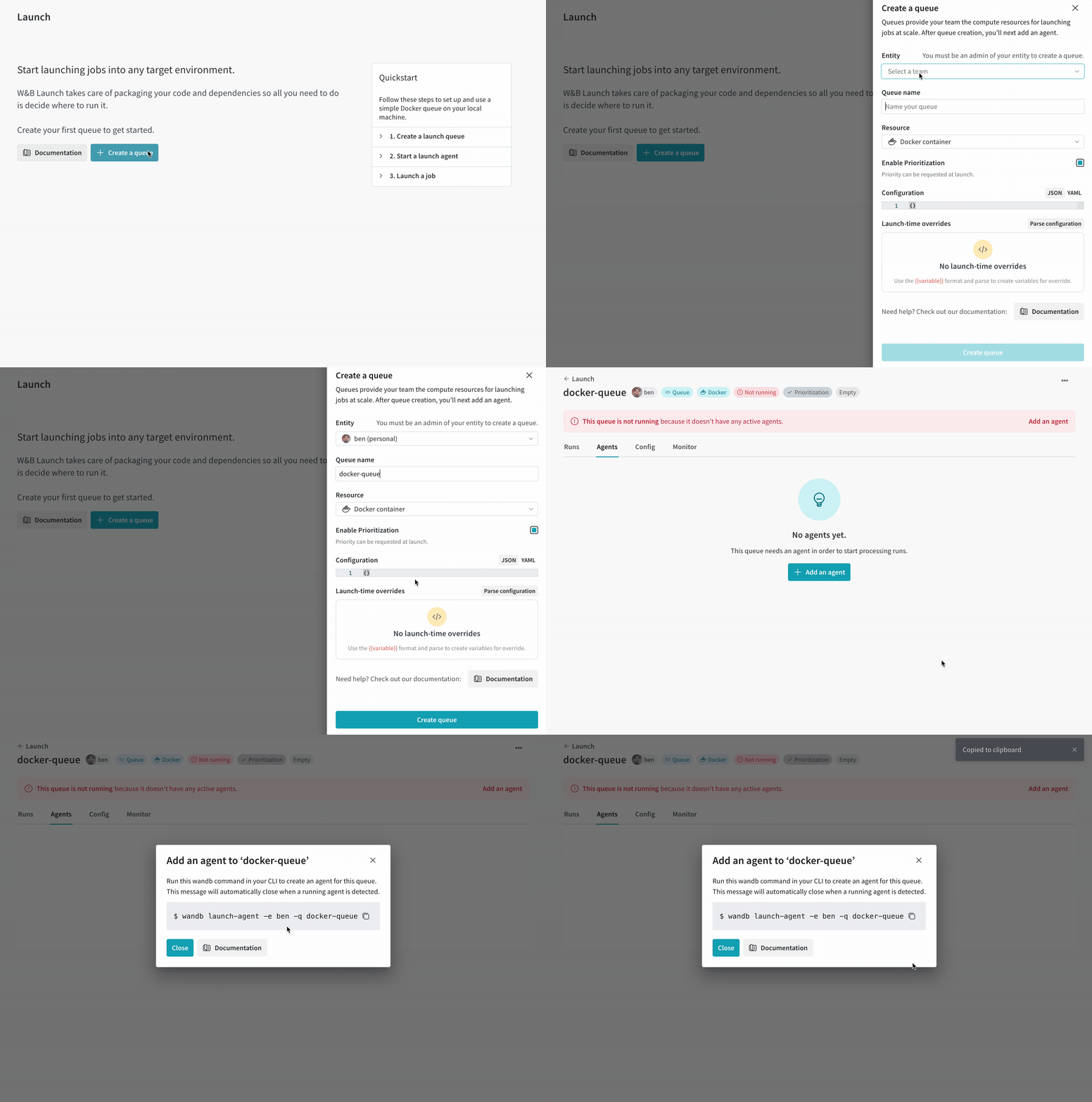
Launch is designed to help teams build workflows around shared compute. In the examples so far, the wandb launch command has executed a container synchronously on the local machine. Launch queues and agents enable asynchronous execution of jobs on shared resources and advanced features like prioritization and hyperparameter optimization. To create a basic queue, follow these steps:
- Navigate to wandb.ai/launch and click the Create a queue button.
- Select an Entity to associate the queue with.
- Enter a Queue name.
- Select Docker as the Resource.
- Leave Configuration blank, for now.
- Click Create queue 🚀
After clicking the button, the browser will redirect to the Agents tab of the queue view. The queue remains in the Not active state until an agent starts polling.
For advanced queue configuration options, see the advanced queue setup page.
Connect an agent to the queue
The queue view displays an Add an agent button in a red banner at the top of the screen if the queue has no polling agents. Click the button to view copy the command to run an agent. The command should look like the following:
wandb launch-agent --queue <queue-name> --entity <entity-name>
Run the command in a terminal to start the agent. The agent polls the specified queue for jobs to run. Once received, the agent downloads or builds and then executes a container image for the job, as if the wandb launch command was run locally.
Navigate back to the Launch page and verify that the queue now shows as Active.
Submit a job to the queue
Navigate to your new launch-quickstart project in your W&B account and open the jobs tab from the navigation on the left side of the screen.
The Jobs page displays a list of W&B Jobs that were created from previously executed runs. Click on your launch job to view source code, dependencies, and any runs created from the job. After completing this walkthrough there should be three jobs in the list.
Pick one of the new jobs and follow these instructions to submit it to the queue:
- Click the Launch button to submit the job to a queue. The Launch drawer will appear.
- Select the Queue you created earlier and click Launch.
This submits the job to the queue. The agent polling this queue picks up and executes the job. The progress of the job can be monitored from the W&B UI or by inspecting the output of the agent in the terminal.
The wandb launch command can push jobs to the queue directly by specifying the --queue argument. For example, to submit the hello-world container job to the queue, run the following command:
wandb launch --docker-image wandb/job_hello_world:main --project launch-quickstart --queue <queue-name>